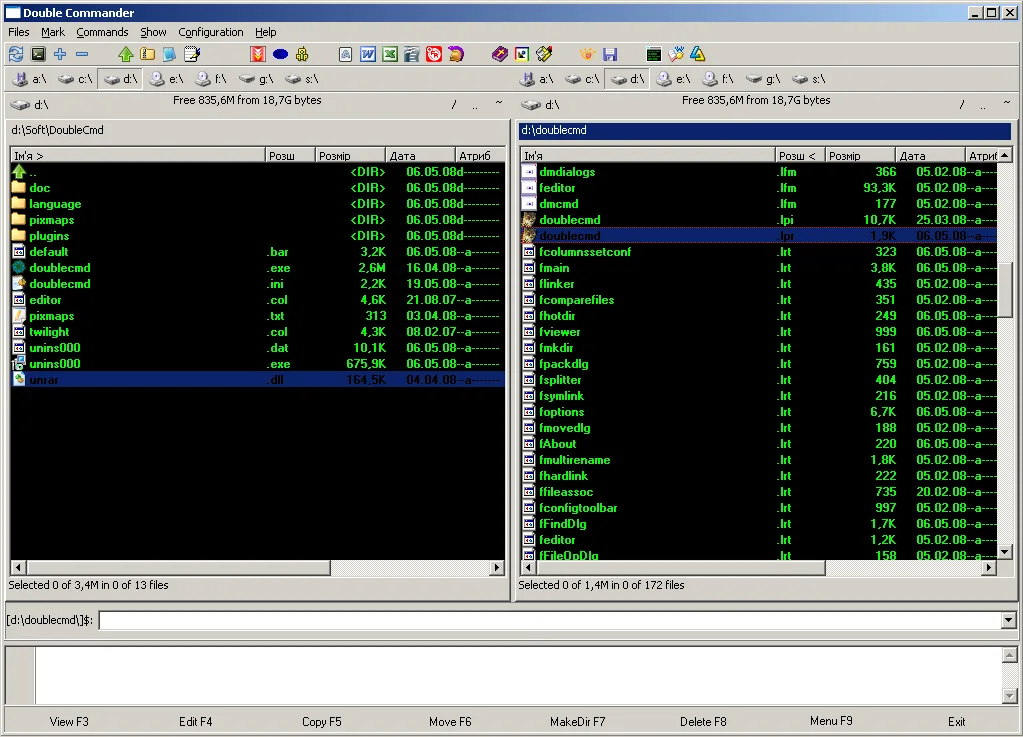
Releases users download the newer matching asset. Homebrew users run brew upgrade —cask double-commander. Linux tar.xz users replace the extract folder after backing up favorites if needed.
Uninstall with Windows installed-apps settings, Trash on macOS, or by deleting the extract folder. Avoid third-party removers that ride file manager queries. Related: releases.
Keep the install boring
A durable dual-pane file manager habit is boring on purpose. One official installer, one extract or Start menu shortcut, one tiny cross-pane copy after every change, and one person who checks GitHub Releases when something looks wrong. That rhythm beats collecting three different builds from three mirrors.
Share the official door
When you teach someone else, send them the Releases URL and the asset pattern rather than a private copy of the setup. Private copies go stale. Official tags do not. Prefer doublecmd-*-x86_64-win64.exe on Windows, match cocoa DMG files on macOS, and use the GTK or Qt tar.xz on Linux. Homebrew’s double-commander cask remains the verified Mac package-manager path for this guide.
Write honest paths
Folder names should read like real work. Destinations should be folders you can afford to fill during the first proof. Favorites should point at those paths so the next launch is faster. Tabs help after the first copy works. Archives and multi-rename wait until the dual-pane file manager habit feels automatic.
Stay on official downloads
Security habits stay simple. Download from doublecmd/doublecmd releases or Homebrew. Verify the file name. Treat SmartScreen and Gatekeeper as expected friction, not as a reason to try a sketchy mirror. Read upstream security notes for advisories. This install guide keeps files on GitHub and does not invent winget ids.
Document the update door
Document the update door on each machine: exe, MSI, portable zip, DMG, Homebrew, or tar.xz. Mixed doors across a team create confusing support threads. When something breaks after a reimage, check the asset name first, then the extract path, then favorites. Most “broken file manager” reports are the wrong binary or a missing shortcut.
Network and removable disks
Network shares and removable disks behave like any other path inside a dual-pane file manager. Open them in a pane, prove a small file, then copy larger trees. Watching both panes remains the point even when latency is high. Encrypted volumes deserve the same small-file proof before a long job.
Teams and labs
Teams that move archives weekly should store approved asset names in the image wiki. Lab machines should avoid unmarked USB installers. Teachers can demo with large fonts and brightly named folders so students see source and destination clearly while still downloading from GitHub Releases themselves.
Shops that reimage monthly should store the approved asset pattern beside other golden installers so the dual-pane file manager returns without improvisation. Portable extracts must sit outside automated Downloads cleanup. Watching both panes remains the point even on network shares: prove a small file first, then copy larger trees.
Frequently asked questions
Is Double Commander free?
Yes. Double Commander desktop builds are free under GPL-2.0, and GitHub Releases assets for a local dual-pane file manager have no paywall on the win64, MSI, DMG, or tar.xz files this guide maps.
Where should I download?
Download from GitHub Releases for doublecmd/doublecmd, or use brew install --cask double-commander on macOS after you trust that formula. Prefer doublecmd-*-x86_64-win64.exe on Windows, and skip Softonic-style wrappers that rename the setup.
Does it work offline?
Yes. After you install from GitHub Releases or Homebrew, directory listings and copies use your local disks and do not require a browser session for everyday dual-pane file manager browsing on your own folders.