- doublecmd-1.2.8.cocoa.aarch64.dmg 15.8 MB 54k downloads
- doublecmd-1.2.8.cocoa.x86_64.dmg 16.6 MB 7.3k downloads
- doublecmd-1.2.8.gtk2.aarch64.tar.xz 8.6 MB 271 downloads
- doublecmd-1.2.8.gtk2.x86_64.tar.xz 9.1 MB 859 downloads
- doublecmd-1.2.8.qt.aarch64.tar.xz 8.9 MB 298 downloads
- doublecmd-1.2.8.qt.x86_64.tar.xz 9.4 MB 565 downloads
- doublecmd-1.2.8.qt6.aarch64.tar.xz 9.0 MB 302 downloads
- doublecmd-1.2.8.qt6.x86_64.tar.xz 9.5 MB 809 downloads
- doublecmd-1.2.8.x86_64-win64.exe 10.1 MB 5.5k downloads
- doublecmd-1.2.8.x86_64-win64.msi 16.5 MB 16k downloads
- doublecmd-1.2.8.x86_64-win64.zip 15.9 MB 5.3k downloads
File manager: free dual-pane desktop install
A file manager with two panes lets you copy, move, and compare folders without flipping a single tree. Double Commander does that job on your computer: download the current Windows win64 setup from GitHub Releases (or the macOS and Linux builds), install it, open both panes, and move files without a SaaS seat for everyday local work.
- Windows:
doublecmd-*-x86_64-win64.exefrom GitHub Releases (MSI and portable zip on the same tag) - macOS: Homebrew cask
double-commanderor cocoa aarch64/x86_64 .dmg - Linux:
doublecmd-*.gtk2.x86_64.tar.xz(Qt builds on the same tag)
By Harbor Quill editorial team Verified against the current Double Commander release on GitHub Releases
Install Double Commander 1.2.8
Windows
Paste into :
Package: GitHub Releases doublecmd-*-x86_64-win64.exe (no winget package verified for this guide). Prefer the win64 .exe; MSI and portable zip are alternates on the same tag..
Or download the file directly from the official GitHub release:
Download Windows win64 .exe installerAlso on this release: Windows win64 MSI installer, Windows win64 portable zip
Windows 10 or 11, 64-bit. Prefer doublecmd-*-x86_64-win64.exe from the latest v* tag; use MSI or portable zip when that fits your policy.
macOS
Paste into Terminal:
brew install --cask double-commanderPackage: Homebrew cask maintained by the Homebrew community (formulae.brew.sh/cask/double-commander).
Or download the file directly from the official GitHub release:
Download macOS Apple Silicon .dmgAlso on this release: macOS Intel .dmg
macOS with Apple Silicon or Intel. Match the .dmg to your chip, or use the Homebrew cask.
Linux
Paste into your terminal:
tar -xJf doublecmd-*.gtk2.x86_64.tar.xz && ./doublecmd/doublecmdPackage: GTK2 x86_64 tarball attached to GitHub Releases (extract and run; Qt builds also on the same tag).
Or download the file directly from the official GitHub release:
Download Linux GTK2 x86_64 .tar.xzAlso on this release: Linux Qt6 x86_64 .tar.xz, Linux Qt5 x86_64 .tar.xz
64-bit Linux desktop with GTK2 or Qt libraries matching the archive you download.
Every file comes from doublecmd/doublecmd v1.2.8 on GitHub, the project's own release, unmodified.
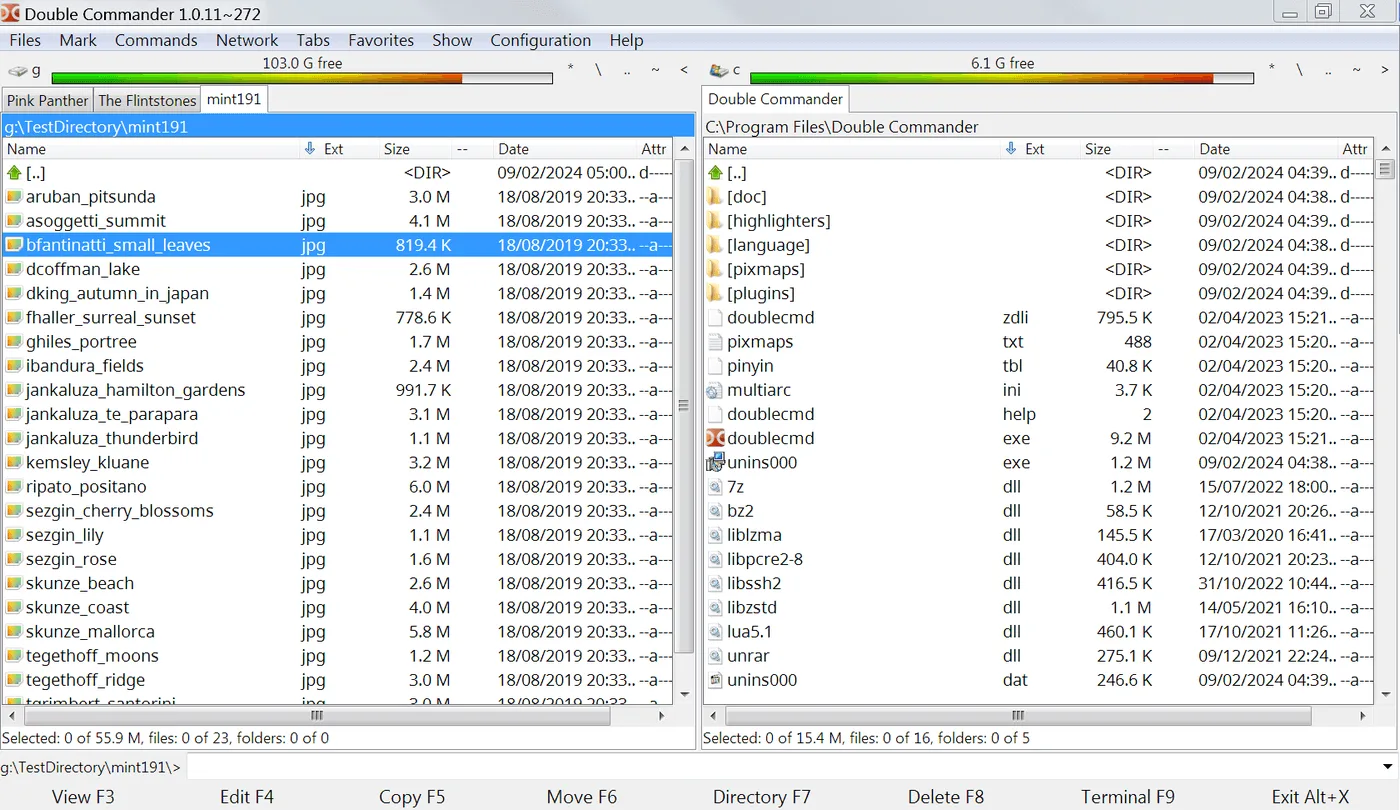
People searching for a free dual-pane file manager usually want two folders visible at once so copy and compare stay honest. Keep this file manager install on GitHub Releases for doublecmd/doublecmd, prove one small cross-pane copy, then explore tabs, archives, and multi-rename only after that path works.
A file manager here means a desktop program that browses local disks with two panels side by side (or stacked). Double Commander is the GPL-2.0 product this guide maps. Source and downloads live on doublecmd/doublecmd. The release door is GitHub Releases. Safe download path: download-safe path. Repo layout: GitHub overview. Which file: releases.
What a file manager job needs
A file manager job on a personal or shop PC needs software that shows directories clearly, not only a search box. You open a folder, select files, copy or move them, rename in bulk when needed, and open archives without guessing which window held the destination. A dual-pane file manager keeps source and destination visible together so you catch mistakes before you overwrite the wrong tree.
Double Commander keeps that work on your disks. You open left and right panes, navigate each side, and run the copy with both paths in view. Tabs help when you juggle more than two folders. The everyday win is fewer lost destinations than a single-pane explorer habit on busy days.
How Double Commander lays out the work
Double Commander opens with two panels. Each panel lists a directory. You change drives, expand folders, and mark files on one side while the other side stays put. Copy and move commands target the inactive pane by design, which is the classic dual-pane file manager contract.
You can stack panes horizontally when a wide monitor helps, or keep the vertical split for tall listings. Archive support, search, and multi-rename sit behind menus once the basic cross-pane copy works. Start with one honest copy of a small folder before you chase power features.
GPL-2.0 desktop builds
The project LICENSE on GitHub reports GNU GPL v2. Free open-source downloads cover the GitHub desktop assets for this file manager. Safety notes: is it safe.
GitHub Releases door
Windows win64 .exe, MSI, and portable zip ship on the same v* tag. macOS cocoa DMGs and Linux tar.xz archives sit beside them on the same current release.
Dual-pane first
README describes two panels side by side or stacked. That is the everyday file manager toolkit without a mandatory cloud seat.
- Prefer GitHub Releases over adware “file manager download” portals.
- Match
x86_64-win64on Windows 64-bit PCs. - A wrapper that ranks for file manager is still the wrong binary.
Why this desktop path
Four facts decide this file manager desktop job, each with a source you can open.
First, the license is GPL-2.0 on the public repository, so the desktop builds on Releases are free to run for local work. Second, the release assets name the OS and architecture in the filename, which makes the genuine file manager installer easier to spot than a renamed setup from a review site. Third, Homebrew publishes a double-commander cask for macOS when you prefer that door. Fourth, the product is dual-pane by design, which matches what people who typed file manager often want when single-pane explorers feel slow for copy jobs.
Honesty matters too. Double Commander is not a terminal-only tool like Midnight Commander, and it is not a commercial Windows suite with paid licenses. If your company already standardized on a paid dual-pane product, stay on that stack until purchasing says otherwise. If you only need a one-time rename, the built-in OS tools may be enough. Choose the dual-pane file manager when you copy between folders every day and want both sides visible.
Install by operating system
On the PC that needs a file manager with two panes, open doublecmd/doublecmd releases, take the current doublecmd-*-x86_64-win64.exe for Windows, or the matching macOS DMG / Linux tar.xz, and install or extract it. Confirm the asset name on the release list before you execute. Longer Windows page: install on Windows. Machine chooser: for this computer.
| OS | File or command | Package source | Guide |
|---|---|---|---|
| Windows | doublecmd-*-x86_64-win64.exe | GitHub Releases | Windows install |
| Windows (alt) | doublecmd-*-x86_64-win64.msi or .zip | Same release tag | releases |
| macOS | brew install --cask double-commander | Homebrew cask | macOS install |
| Linux | doublecmd-*.gtk2.x86_64.tar.xz | GitHub Releases | Linux install |
This guide maps the Windows win64 .exe path first because the job lock prefers that asset for the head term. MSI and portable zip are verified names on the same tag. Homebrew is verified for macOS. No winget id was verified for this guide, so Windows stays on GitHub Releases.
Eight steps to first dual-pane copy
Machine path: for this computer. After the download lands: first hour after install. A successful copy of one small folder between panes is a better test than stacking three different downloads from three mirrors.
- Open GitHub Releases for doublecmd/doublecmd Open the official Releases page and confirm you are on a v* tag for Double Commander, not a random fork.
- Download the Windows win64 setup first Prefer doublecmd-*-x86_64-win64.exe for Windows. Use the MSI or portable zip on the same tag when that matches your policy.
- Run the installer and finish UAC Complete the win64 setup. On macOS take the matching cocoa .dmg or brew install --cask double-commander; on Linux extract the GTK2 or Qt tar.xz.
- Launch Double Commander once Confirm two panes open so the file manager shows left and right directories without an account wall.
- Copy one small folder between panes Pick a tiny folder, copy or move it across panes, and confirm the destination listing updates.
- Pin a favorite path Bookmark or hotlist one working directory so the next file manager session starts where you left off.
- Keep one update door Return to the same GitHub Releases page for the next win64 setup, MSI, DMG, or tar.xz. Skip Softonic-style wrappers.
- Optional layout check After the first copy works, try horizontal panes or a second tab if your workflow needs it.
First hour after install
Start this file manager with a folder you already understand: a downloads cleanup, a photo export, or a project archive. Open the source on the left, the destination on the right, copy once, and confirm both listings. Then pin one favorite path so the next session is faster.
If the app fails to start, re-check that SmartScreen or Gatekeeper allowed the file from GitHub Releases. Do not download a second copy from a random mirror to fix a blocked first run. First run: first run. Safety: safe download.
Archive tools and multi-rename can wait until the simple cross-pane copy works. Switching habits from the built-in explorer: switch from Explorer. Head-to-head notes: vs Total Commander.
How to choose a file manager tool
A careful buyer checks five things before they trust a file manager with real folders. First, whether two panes are first-class or bolted on. Second, whether the update door is the vendor release page or a sketchy mirror. Third, license and price over a year. Fourth, whether archives and search are built in or bolted through plugins you must trust separately. Fifth, whether the tool works offline on local disks without an account wall.
Double Commander scores well when you want a free GPL-2.0 dual-pane file manager with Windows, macOS, and Linux builds on GitHub Releases. Paid commercial dual-pane tools win when your company already bought seats and training. Built-in explorers win for casual one-window browsing and lose when you copy between deep trees all day. Pick the smallest tool that keeps source and destination visible without adware wrappers.
Compared with other file managers
| Option | Price | Open source | Platforms | Notes |
|---|---|---|---|---|
| Double Commander | Free desktop | GPL-2.0 | Win/mac/Linux | Dual-pane file manager |
| Built-in OS explorer | Free with OS | Usually no | Per OS | Single-pane default for many users |
| Total Commander | Shareware | No | Windows | Classic dual-pane commercial |
| Directory Opus | Commercial | No | Windows | Power file manager |
| Midnight Commander | Free | Yes | Terminal | Text UI dual-pane |
Longer comparison: vs Total Commander. Built-in explorers win when you cannot install software. Double Commander wins on offline PCs and when you want a dual-pane file manager under GPL-2.0. Commercial suites win when purchasing already locked the stack.
Free desktop vs paid dual-pane
The Double Commander desktop app is free under GPL-2.0. You can browse disks, copy between panes, and work offline without paying. Paid dual-pane products add vendor support contracts, polished installers, and sometimes deeper Windows shell integration. Buy those when your org already requires them, not because a search ad said “pro file manager.”
For a student, freelancers, or a small shop, the free desktop file manager is enough: one win64 setup, two panes, one honest copy. For a corporate image with mandatory tooling, evaluate the incumbent against migration cost before you switch tools for branding reasons alone.
Mistakes that undo a file manager install
Five concrete mistakes show up again and again. First, downloading a renamed setup from a review portal instead of GitHub Releases. Fix: match the asset name doublecmd-*-x86_64-win64.exe on doublecmd releases. Second, grabbing the i386 win32 build on a 64-bit PC by habit. Fix: prefer x86_64-win64. Third, installing three copies from three mirrors. Fix: one update door forever. Fourth, skipping the first cross-pane copy so you never learn the destination pane. Fix: copy one tiny folder on day one. Fifth, chasing plugins before the basic file manager path works. Fix: prove panes, then add power features.
A sixth habit helps: keep portable zip and installed setups from colliding on PATH day. Pick one style per machine and document it.
Guides index
Longer file manager how-tos live under guides: Windows, macOS, and Linux install, safety, first run, win64 notes, switching from Explorer, Total Commander comparison, troubleshooting, and update/uninstall. Cluster pages cover releases, GitHub, download safe, and for this computer.
Repeatable file manager habits
A repeatable file manager habit looks like this: one file manager installer from GitHub Releases, one tiny cross-pane copy after install, one favorite path pinned, and one update door forever. That rhythm keeps Double Commander useful on a shared PC without drifting into adware mirrors.
Teams that move archives weekly should treat the file manager like any other signed tool. Document whether the PC used exe, MSI, portable zip, DMG, or tar.xz. Document who owns the next Releases check. Those notes prevent “which binary is this” arguments after a reimage.
When a contractor asks for a folder drop, the dual-pane file manager makes the destination obvious. When a class project needs sorted exports, a dual-pane file manager beats a pile of overlapping windows. When a launch needs clean packaging, visible source and destination matter more than themes. Keep the job name clear so searchers who typed file manager land on dual-pane install first.
Everyday limits
A desktop file manager cannot fix unclear folder names. Phone photos of the UI still need readable fonts. Dense trees need honest sorting, not wishful filters. Shared PCs should store portable installs in a known folder. Prefer one update door for installs: GitHub Releases for win64/MSI/DMG/tar.xz, or Homebrew when that is how you installed on macOS.
Borrowed or locked-down lab PCs may block unknown setups. Stop rather than force a wrapper installer from a search ad. Use a machine you control when you need a clean file manager path. A second proof after every reimage keeps the Start menu honest.
Panel settings that matter
A file manager is only useful when both panes show the folders you meant. Double Commander lets you switch drives, open tabs, and change split orientation so a long listing fits. Start with a short copy between two known folders, then add tabs. Zoom fonts so a dense directory remains readable before you present a cleanup to someone else.
Color coding helps humans scan, but contrast still matters on projectors. Prove one plain file manager copy before you style columns. Sync-dirs and multi-rename are power moves, not first-hour tasks. Prove one cross-pane copy, then open archives, then consider advanced tools.
After the first cross-pane copy
After you trust the panes, archive open and search help you inspect folders before you delete. Use them to verify names match what you typed. Tabs help when a third folder joins the job without closing the first two.
Switching from a single-pane explorer habit is a power tool, not a speech. Prove one local copy, then move a real project folder, then compare. Guides: first run, troubleshooting.
How do I install a file manager on Windows?
Download the current doublecmd-*-x86_64-win64.exe from GitHub Releases for doublecmd/doublecmd and run it. Prefer the win64 setup; MSI and portable zip sit on the same tag when policy needs them. Guide: install on Windows. No winget package was verified for this guide, so stay on the official release assets.
Where should I download a file manager app?
Prefer GitHub Releases for doublecmd/doublecmd when you need the win64, MSI, DMG, or tar.xz assets, or use the Homebrew cask on macOS after you trust that formula. Skip Softonic-style wrappers that rename the setup. Details: download safe. Keep every file manager binary matched to that Releases list.
Is this file manager software free?
Double Commander desktop is free under GPL-2.0. GitHub Releases assets named above have no paywall for local dual-pane work. There is no paid unlock required for basic offline file manager browsing on your own disks.
Can I switch into this file manager from Explorer?
Yes. Install Double Commander, open your usual folders in both panes, and copy one small directory as proof. Keep the built-in explorer available until the dual-pane file manager habit sticks. Guide: switch from Explorer. Comparison context: vs Total Commander.
Does the desktop file manager work offline?
Yes. After you install from GitHub Releases or Homebrew, directory listings and copies use your local disks and do not require a browser session for everyday browsing. Offline habits: first run and first hour.
Official releases
All releases on GitHub- GitHub stars
- 4,515
- Downloads, last 3 releases
- 310k
- Latest version
- 1.2.8
1.2.7
v1.2.7
- doublecmd-1.2.7.cocoa.aarch64.dmg 15.8 MB 30k downloads
- doublecmd-1.2.7.cocoa.x86_64.dmg 16.6 MB 4.5k downloads
- doublecmd-1.2.7.gtk2.aarch64.tar.xz 8.6 MB 141 downloads
- doublecmd-1.2.7.gtk2.x86_64.tar.xz 9.1 MB 586 downloads
- doublecmd-1.2.7.qt.aarch64.tar.xz 8.9 MB 153 downloads
- doublecmd-1.2.7.qt.x86_64.tar.xz 9.4 MB 352 downloads
- doublecmd-1.2.7.qt6.aarch64.tar.xz 9.0 MB 137 downloads
- doublecmd-1.2.7.qt6.x86_64.tar.xz 9.5 MB 502 downloads
- doublecmd-1.2.7.x86_64-win64.exe 10.1 MB 3.9k downloads
- doublecmd-1.2.7.x86_64-win64.msi 16.5 MB 11k downloads
- doublecmd-1.2.7.x86_64-win64.zip 15.9 MB 3.4k downloads
1.1.32
v1.1.32
- doublecmd-1.1.32.cocoa.aarch64.dmg 15.1 MB 98k downloads
- doublecmd-1.1.32.cocoa.x86_64.dmg 15.8 MB 18k downloads
- doublecmd-1.1.32.gtk2.aarch64.tar.xz 8.2 MB 218 downloads
- doublecmd-1.1.32.gtk2.x86_64.tar.xz 8.7 MB 1.3k downloads
- doublecmd-1.1.32.qt.aarch64.tar.xz 8.6 MB 210 downloads
- doublecmd-1.1.32.qt.x86_64.tar.xz 9.1 MB 879 downloads
- doublecmd-1.1.32.qt6.aarch64.tar.xz 8.6 MB 186 downloads
- doublecmd-1.1.32.qt6.x86_64.tar.xz 9.2 MB 941 downloads
- doublecmd-1.1.32.x86_64-win64.exe 10.0 MB 9.5k downloads
- doublecmd-1.1.32.x86_64-win64.msi 16.3 MB 25k downloads
- doublecmd-1.1.32.x86_64-win64.zip 15.7 MB 9.3k downloads
Counts come from the GitHub API at build time and only cover the v* tags shown here. Package managers (winget, Homebrew, Snap, Flathub) and app stores are not included.