Switch to a dual-pane file manager from Explorer
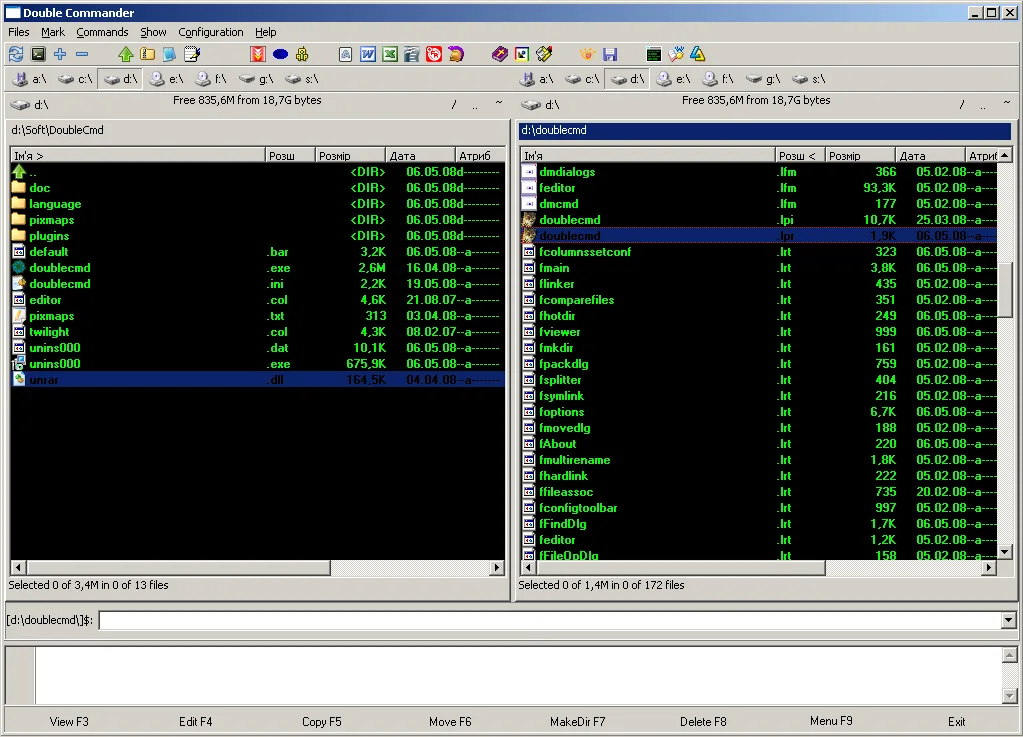
Built-in explorers are fine for quick opens. They get awkward when you copy between two deep trees and lose the destination window. A dual-pane file manager keeps source and destination visible. Double Commander is the GPL-2.0 option this guide installs from GitHub Releases.
Install then prove
Install with the win64 setup (or MSI/zip) on Windows, or the macOS/Linux builds described on for this computer. Launch once and confirm two panes. Put your usual source folder on the left and the destination on the right.
Copy one small folder first. Watch both listings update. That proof teaches the dual-pane contract better than reading feature lists. Then move a real project folder you care about, with a backup elsewhere if the files are irreplaceable.
Keep both tools briefly
Keep the built-in explorer available for a week. Use Double Commander when the job is copy, compare, or cleanup. Use the built-in tool when you only need to open one path. Habits stick when you do not force every task through a new file manager on day one.
Pin favorite directories so the dual-pane file manager opens where your work lives. Tabs help when a third folder joins. Archives can wait until basic copy feels boring.
Shortcuts and coworkers
Keyboard shortcuts differ from the built-in explorer. Learn copy and move between panes before you customize everything. Write down two shortcuts you actually use.
If coworkers send “Explorer screenshots” as instructions, translate them into pane language: left is source, right is destination. The dual-pane file manager makes that translation visible.
Uninstall and safety
Uninstall later is covered in update and uninstall. Comparison with the classic shareware dual-pane tool: vs Total Commander.
Safety reminder: do not migrate by downloading a second “explorer replacement” from an ad. Stay on doublecmd/doublecmd Releases. Download safe: download safe.
First hour after install: installed. First run notes: first run.
A second proof after lunch helps memory: open the dual-pane file manager again, confirm favorites, and copy another tiny folder. That repetition beats reading a feature list. Keep Releases bookmarked so the next upgrade does not start with a search ad.
Document the install
When you document the install for someone else, write the asset pattern, the repository name, and the proof you expect after install. A note that only says “get a file manager” invites adware. A note that says “doublecmd-*-x86_64-win64.exe from doublecmd/doublecmd Releases, then copy one folder between panes” is actionable.
Survive reimages
Shops that reimage PCs monthly should store the approved asset name in the image wiki. The dual-pane file manager then returns with the same habits after each wipe. Portable zip users should keep the extract folder outside the user Downloads directory so cleanup scripts do not delete the app.
Watch filenames on new tags
If a release renames architectures, re-read the asset list before you script downloads. Filename tokens such as x86_64-win64, cocoa.aarch64, and gtk2.x86_64 are the practical checksum for humans who will not run hashing tools every time. Still prefer official Releases over mirrors that strip those tokens.
Shares and encrypted volumes
Network shares and encrypted volumes behave like any other path inside a dual-pane file manager: open them in a pane, then copy with both sides visible. Prove a small file first when latency is high. Large tree copies deserve a progress glance before you walk away.
- Keyboard-first users should learn pane focus switching early.
- Mouse-first users should resize the split until names are readable.
- Both groups benefit from one favorite path on each side.
Second-hour skills
Archive formats, search tools, and multi-rename are documented upstream. Treat them as second-hour skills. The first-hour bar for this file manager remains two panes and one honest copy. That bar catches wrong binaries faster than feature tours.
Antivirus and classrooms
When an antivirus quarantines the setup, check the filename against GitHub Releases before you restore from a random mirror. If the hash or name matches upstream and your security team allows it, restore that same file. If the name drifted, delete it and download again from Releases.
Teachers and lab managers can keep a known-good installer on an internal share that still originated from GitHub Releases. Record the tag and asset name on the share README. Students then install the same dual-pane file manager without surfing adware SERPs.