File manager releases: which asset to take
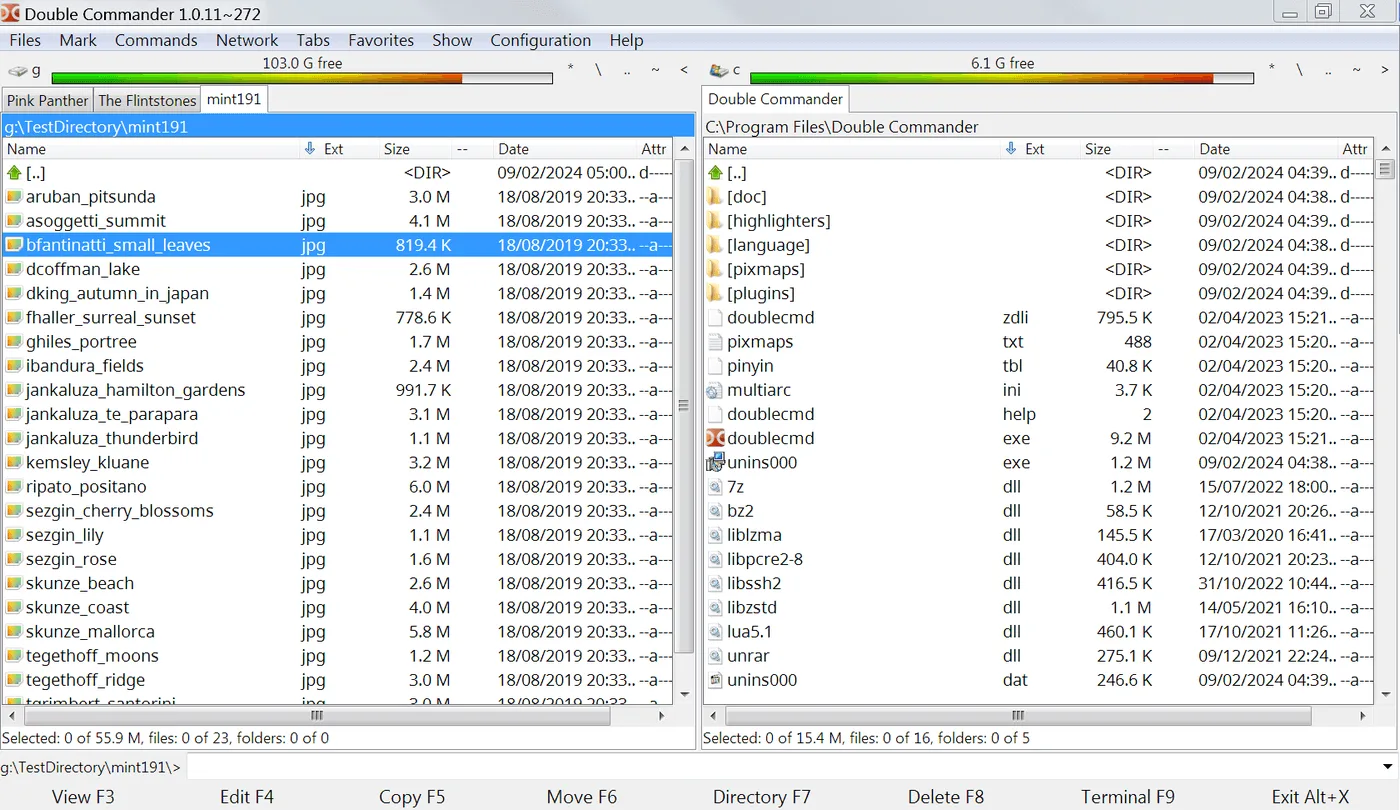
GitHub Releases for doublecmd/doublecmd is the update door for this dual-pane file manager. Open the current v* tag, read the asset list, and match the filename to your OS before you click download. The InstallPanel on the home page mirrors the same picks at build time.
Windows assets
On Windows 64-bit, prefer doublecmd-*-x86_64-win64.exe as the primary file manager setup. The same tag also lists doublecmd-*-x86_64-win64.msi for MSI-based installs and doublecmd-*-x86_64-win64.zip for a portable zip when policy blocks classic setups. Avoid the i386-win32 trio unless you truly run 32-bit Windows.
macOS and Linux assets
On macOS, take doublecmd-*.cocoa.aarch64.dmg for Apple Silicon or doublecmd-*.cocoa.x86_64.dmg for Intel. If you prefer Homebrew, the verified cask is brew install --cask double-commander from formulae.brew.sh. Either door should land the same dual-pane file manager product line.
On Linux, this tag ships tar.xz archives rather than a .deb. Prefer doublecmd-*.gtk2.x86_64.tar.xz when GTK2 libraries fit your desktop, or the Qt6 / Qt5 x86_64 archives on the same release when that matches your stack. Extract the archive and run the bundled binary from a folder you control.
What to ignore
Source tarballs and checksum-looking names are not the everyday file manager install. Ignore -src archives unless you are building from source on purpose. Confirm the tag is not a random fork. Safe path notes live on download safe. Machine chooser: for this computer.
One update door
After you pick an asset, keep one update door. The next file manager upgrade should return to the same Releases page (or the same Homebrew cask) instead of a new SEO mirror. Stamp and footer point at the current release on GitHub Releases so you are not reading a hardcoded version pin in the prose.
If SmartScreen or Gatekeeper blocks the first run, re-check that the file name still matches the Releases list. Do not “fix” a blocked file manager install by grabbing a second binary from a review portal. Guide: Windows install, macOS, Linux.
Portable and MSI notes
Portable zip users should extract to a stable folder and document that path for the next reimage. MSI users should note whether the install was per-user or per-machine when their org cares. Exe users should keep the original downloaded name in a downloads archive so audits can match GitHub. Those habits keep the dual-pane file manager trustworthy months later.
Release cadence on doublecmd/doublecmd has been regular v* tags with Windows, macOS, and Linux assets together. Read the release notes for breaking UI changes, then still prove one cross-pane copy after each upgrade. First hour: installed.
| OS | Primary asset pattern | Alternates |
|---|---|---|
| Windows | *-x86_64-win64.exe | MSI, portable zip |
| macOS | *.cocoa.aarch64.dmg | Intel dmg, Homebrew cask |
| Linux | *.gtk2.x86_64.tar.xz | Qt6 / Qt5 tar.xz |
Document the install
When you document the install for someone else, write the asset pattern, the repository name, and the proof you expect after install. A note that only says “get a file manager” invites adware. A note that says “doublecmd-*-x86_64-win64.exe from doublecmd/doublecmd Releases, then copy one folder between panes” is actionable.
Survive reimages
Shops that reimage PCs monthly should store the approved asset name in the image wiki. The dual-pane file manager then returns with the same habits after each wipe. Portable zip users should keep the extract folder outside the user Downloads directory so cleanup scripts do not delete the app.
Watch filenames on new tags
If a release renames architectures, re-read the asset list before you script downloads. Filename tokens such as x86_64-win64, cocoa.aarch64, and gtk2.x86_64 are the practical checksum for humans who will not run hashing tools every time. Still prefer official Releases over mirrors that strip those tokens.
Shares and encrypted volumes
Network shares and encrypted volumes behave like any other path inside a dual-pane file manager: open them in a pane, then copy with both sides visible. Prove a small file first when latency is high. Large tree copies deserve a progress glance before you walk away.
- Keyboard-first users should learn pane focus switching early.
- Mouse-first users should resize the split until names are readable.
- Both groups benefit from one favorite path on each side.
Second-hour skills
Archive formats, search tools, and multi-rename are documented upstream. Treat them as second-hour skills. The first-hour bar for this file manager remains two panes and one honest copy. That bar catches wrong binaries faster than feature tours.
Antivirus and classrooms
When an antivirus quarantines the setup, check the filename against GitHub Releases before you restore from a random mirror. If the hash or name matches upstream and your security team allows it, restore that same file. If the name drifted, delete it and download again from Releases.
Teachers and lab managers can keep a known-good installer on an internal share that still originated from GitHub Releases. Record the tag and asset name on the share README. Students then install the same dual-pane file manager without surfing adware SERPs.